
What is AWS Direct Connect?
In this world of cloud technologies, and the idea that the cloud can solve all your problems, there is always a need to have some level of connection from an on-premise, or data centre location into AWS. Typically, the use of a VPN can be enough for most organisations, and it is a lot cheaper than AWS Direct Connect however, there will always be a wider security policy, or additional protections you need on your network. This is where AWS Direct Connect comes in.
Unlike a VPN connection, which creates a private, encrypted tunnel between different networks and AWS, AWS Direct Connect can be seen in the most simplest terms, as plugging a network cable from a switch in your racks into a switch inside AWS that is connected directly into an AWS network. A layer 2 “wired” connection that you can push traffic you need through it. The connection never transits through the public internet, and is completely private (to a degree). It can reduce the number of hops over different internet routers to get to your AWS network, reducing the latency and improving the available bandwidth to and from your AWS resources, and depending on the size of the pipe you request from AWS, it could be faster than what is currently capable over a standard Site to Site VPN connection.
It uses a networking standard called 802.1Q VLAN tagging to be able to segment the traffic, by tagging traffic that transverses the network, switches can ensure that only the right ports see the right traffic. This is a very similar concept to the VLANs that you may be familiar with from your home network, same technology, just in a different context.
This post isn’t meant to be a complete re-hash of the documentation! If you would like to know more, then feel free to look at the AWS Direct Connect documentation. Instead, I will go through some of the gotchas that I have encountered with AWS Direct Connect while building a network for a customer.
Allowed Prefixes for AWS Direct Connect gateways
There is a whole page on the AWS documentation called Allowed prefixes interactions specifically for this, so I will talk about the specific gotcha that I encountered. The allowed prefixes act differently depending on the type of association you have linked your AWS network up to Direct Connect with. Virtual Private Gateway (VPG) or Transit Gateway (TGW), the list changes from a filter to a whitelist of what can be advertised over Direct Connect, and in the case I worked with, in both directions.
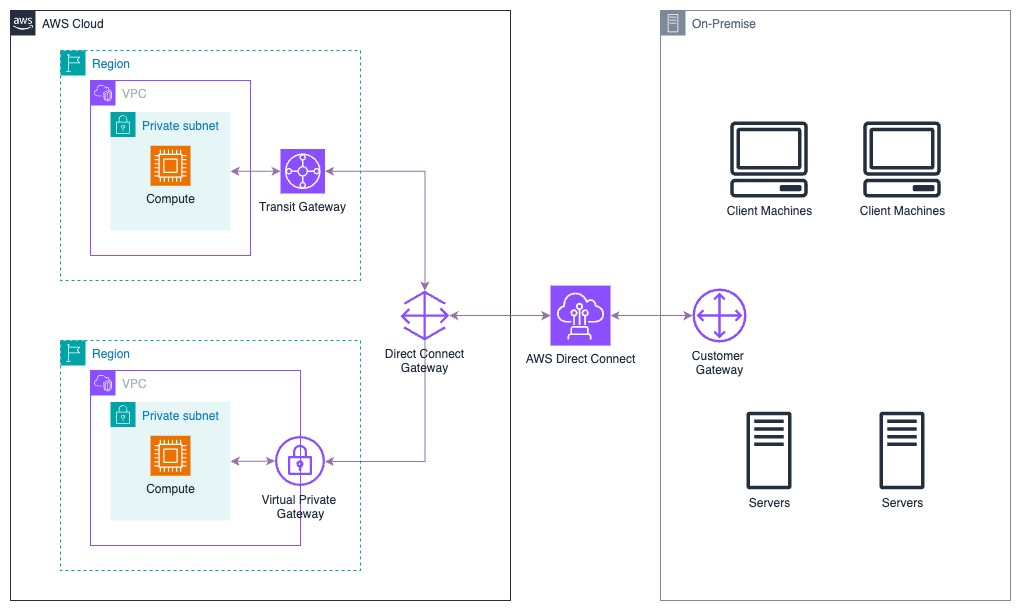
Firstly, this is just an example of a wider customer example! It wasn’t quite set up this way, but this is summarised to show the potential of two different ways to connect your network to AWS. In reality, the customer did have something similar setup, but connected to two different types of setup, that we came in to resolve for them. For this we shall look at the Allowed Prefixes list across both association types.
Where to find the Allowed Prefixes list
This one caught me out when looking around the interface, if you have never had to use AWS Direct Connect before, while you know it might exist from training, locating the list took a few minutes to find! On many occasions during customer calls I got myself lost looking for this, mainly because - it’s available in two locations!
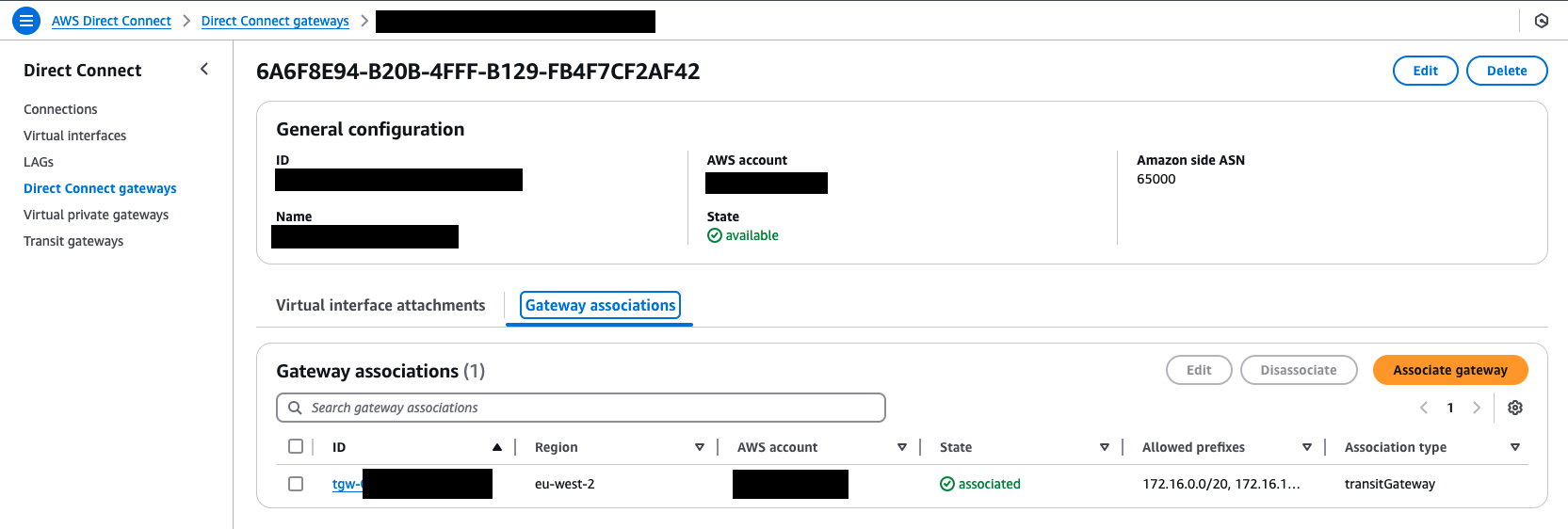
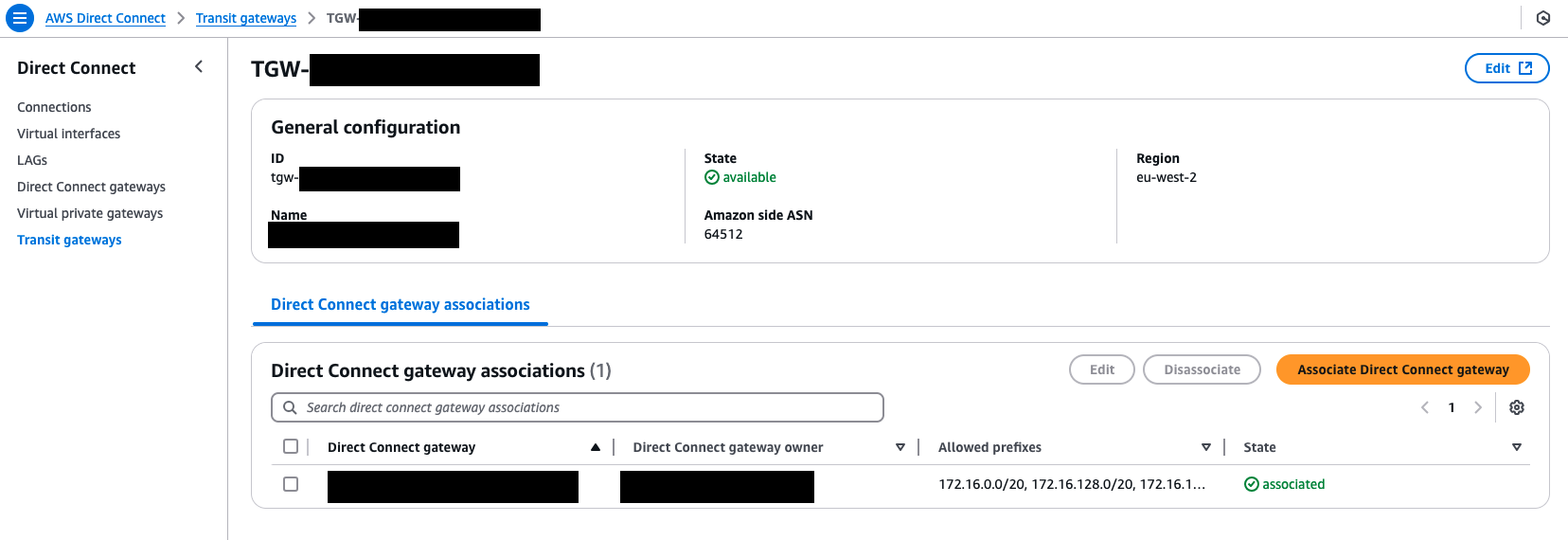
Both locations will send you to the same place, so don’t worry that you are editing one and need to amend the other.
NOTE: Just like with any other BGP connection, making a change to this list will reset the BGP connection and re-advertise the prefixes in the list. This normally isn’t an issue, but sometimes this can cause a connectivity break if there is an issue somewhere else in the BGP sessions that exist. Just be aware of this if you need to make a change. Include it in any change request, or process you have to amend the list.
An example setup
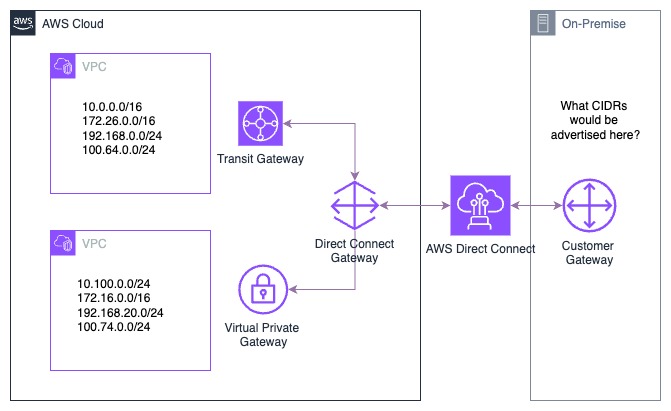
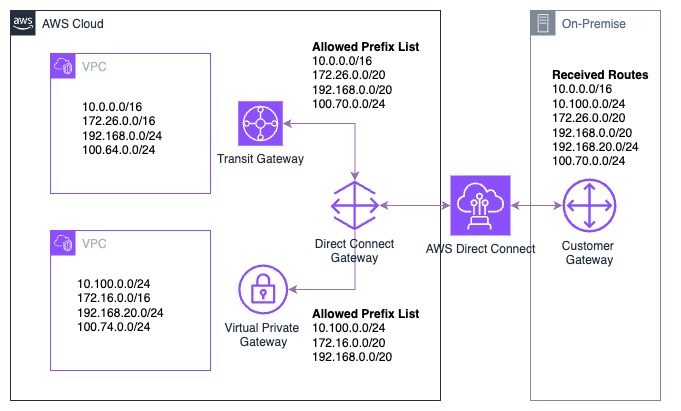
In this example, we have listed essentially what the VPC’s are advertising into the different associations. This hasn’t covered the lower level examples of how this connects in, we shall assume that prorogation has been enabled properly on each, and both the Transit Gateway and the Virtual Private Gateway are receiving the correct prefixes.
Allowed Prefixes list with a Transit Gateway Association
Starting with an AWS Transit Gateway association, we had traffic being advertised over BGP to AWS, and the VPC’s being pushed back through to on-premise. We would need to be able to advertise network from the VPC connections, and On-Premise networks into the Transit Gateway. Remember, that essentially Direct Connect is one “router” and the Transit Gateway is another, linked with a “virtual cable”. The allowed prefix list in this case acts as both a filter and an announcer right in the middle of the two, but controlled from the Direct Connect side. This list acts as the CIDR’s that get advertised into the Transit Gateway. The documentation calls it out on this specific section, but it caught me out with my customer!
For this example, we are going to use an allowed prefix list that looks like this:
10.0.0.0/16172.26.0.0/20192.168.0.0/20100.70.0.0/24
With this prefix list and the above listed AWS advertised prefixes, this will show you what gets advertised on to the on-premise network. This works the opposite way around as well, for on-premise networks advertised into AWS however, for this example we will just go one way.
| AWS Advertised Prefix | Allowed Prefix Entry | On-Premise Received Prefix | Notes |
|---|---|---|---|
| 10.0.0.0/16 | 10.0.0.0/16 | 10.0.0.0/16 | Simple example, what was advertised is what was received |
| 172.26.0.0/16 | 172.26.0.0/20 | 172.26.0.0/20 | Here we have a larger CIDR in AWS, but the prefix is smaller in the allowed prefix list, so the smaller prefix is what is received |
| 192.168.0.0/24 | 192.168.0.0/20 | 192.168.0.0/20 | Here we have a smaller CIDR in AWS, but the prefix is larger in the allowed prefix list, so the larger prefix is what is received |
| 100.64.0.0/24 | None | None | An example of the filter element working, while we have configured the AWS side to advertise the prefix, it is not allowed to be advertised over Direct Connect to on-premise |
| None | 100.70.0.0/24 | 100.70.0.0/24 | This is where it can get a little complex, we have added the allowed prefix, but it isn’t being advertised on AWS -or- on premise. In this instance both sides of the association will receive the prefix, even though there is no network |
GOTCHA: Be careful when using the allowed prefix list with a Transit Gateway association, not to try and open up wider CIDR ranges than you need to, as this can have an unindented effect on the traffic that is advertised into the Transit Gateway and on premise.
Allowed Prefixes list with a Virtual Private Gateway Association
Moving onto the Virtual Private Gateway association, this connection uses pure filtering. If you are on the filter list, then you will be allowed to advertise, if you are not, then you can’t. The CIDRs advertised must be exact otherwise the filter will block it. This list will not actively announce any CIDR in the list, so you can’t use it to advertise non-existent or wider ranges to make “administration” easier later on! The AWS Documentation also calls this out but for me, this is where I was also caught out.
For this example, we are going to use an allowed prefix list that looks like this:
10.100.0.0/24172.16.0.0/20192.168.0.0/20
With this prefix list and the advertised routes that exist in the AWS side, we will show you what gets advertised on the on-premise network. Just like before, this works the opposite way around as well, for on-premise networks advertised into AWS however, for this example we will just go one way.
| AWS Advertised Prefix | Allowed Prefix Entry | On-Premise Received Prefix | Notes |
|---|---|---|---|
| 10.100.0.0/24 | 10.100.0.0/24 | 10.100.0.0/24 | Simple example, what was advertised is what was received, filter is allowed |
| 172.16.0.0/16 | 172.16.0.0/20 | None | We h ave a wider CIDR in AWS, but the filter is of a smaller range, therefore this does not get advertised into the on-premise network |
| 192.168.20.0/24 | 192.168.16.0/20 | 192.168.20.0/24 | Here we have a smaller CIDR in AWS, and the filter is for a wider range, as the smaller prefix is within the larger prefix on the filter list, it will allow it through to the on-premise network |
| 100.74.0.0/24 | None | None | Simple example, this CIDR is not in th prefix list, so it is not allowed to be advertised |
GOTCHA: Here we can see that the filter list is not the same as before, different ranges get advertised in different ways. While this is talked a lot in the AWS documentation, getting the experience of using this with AWS Direct Connect is a little harder due to it’s specific usage and adoption within different customers.
Summary
Sometimes it can feel counter intuitive on how the two types of allowed prefix lists work, but they are important in knowing the best way to configure a large organisations connection into AWS. Being able to see this in person is very hard to see due to the adoption of AWS Direct Connect, so keep this in mind the next time you run into an odd routing problem with the use of AWS Direct Connect.