
⚠️ Note: This is Part 3 of my IPv6 on AWS series, the first part is available here, and the second part here). ⚠️
Introduction
With this post, we look into how an AWS Network Firewall can be used in a DUALSTACK mode to cover both IPv4 and IPv6. In a future post, we will go into more depth into how we can enable this for IPv6 only, but in this case we are using this as a stepping stone. The main reason for me to go into this detail is finding this throughout the current eco system seemed to be missing all the key steps in a single location! I am sure there will be soon, but ultimately this was my experience and how we can get over to an IPv6 world.
Where to begin?
To start, I will be taking over from one of the AWS Network Firewall example architectures. A AWS Network Firewall with a NAT Gateway. Instead of going over essentially what is already a known design pattern, I will just cover enough to get us started.
Standard IPv4 AWS Network Firewall Design
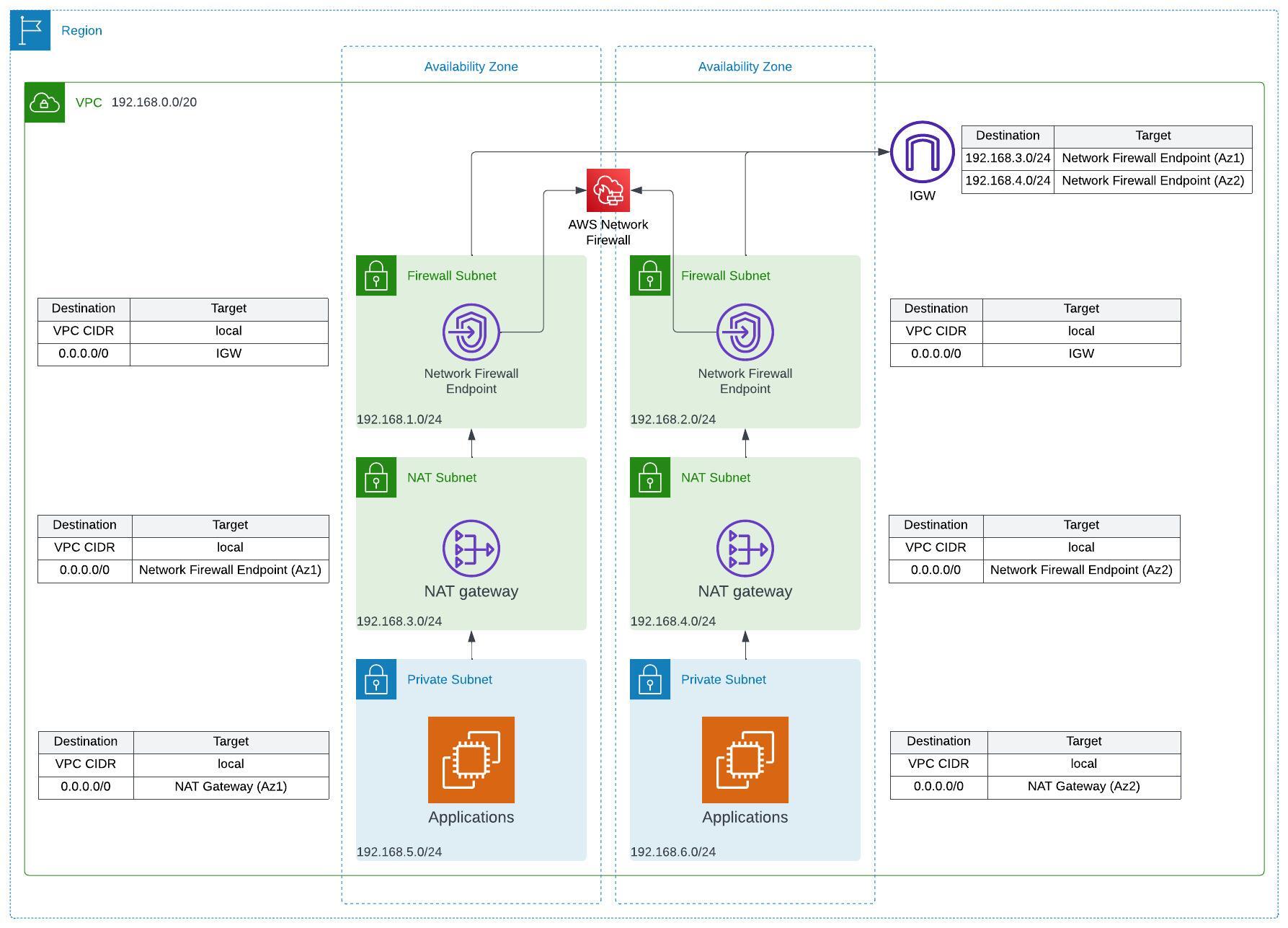
The AWS Network Firewall is a centralised managed Firewall Appliance that allows you to scale and protect your workloads in AWS. It uses the AWS Gateway Load Balancer and GENEVE Protocol the that we have covered in a previous post What is an AWS Gateway Load Balancer anyway?. The main difference is that the EC2 appliance we used in this post, is replaced with the AWS managed service.
Where does IPv6 fit in?
Looking back at part one, I mention in Adding IPv6 outbound routing to the private subnets that with IPv6 networks, having a NAT to expand the IP ranges, isn’t really needed. You can assign each compute element with its own publicly routable address.
So with this in mind, the “application EC2 instance” seen in the design above, would get it’s own IPv6 address, and wouldn’t need to be NATted.
Terraform behind the IPv4 solution
Let’s start with the original diagram. The code for this is up at 04-network-firewall-ipv4 if you wish to see the whole repo, but here are snippits of the important bits.
Something I have had a few issues with, was getting a easier mapping from the AWS Network Firewall to the VPC Endpoints in each subnet, so within the locals.tf file, I have generated this block to export the mappings. It sets the key for each of the endpoints as the availability zone that it has been configured in, which will be handy later on when we try and map to the right routing table.
|
|
Next we have the routing table for the Internet Gateway. As mentioned my previous post under How does this work in AWS, the key to routing traffic inbound to the right location, is an Edge Associated VPC Route table. In summary, these are added to the edge, and the Internet Gateway (IGW) to override the standard routing, and push traffic directly to the Gateway Load Balancer (GWLB) Endpoint for the Network Firewall.
|
|
For the NAT Gateway Subnet, we would have the return route back into the Network Firewall for outbound traffic.
|
|
And then for the Private Subnets where the applications, EC2 instances, or any service that requires access to the internet from a Private Subnet, we will need to route all traffic through to the NAT Gateway in each of the Availability Zones.
|
|
So far, pretty much standard for a GWLB setup. This should cover everything that is needed to get the routing element working for the VPC.
Lets bring in IPv6
Solution Design

With some minor adjustments to our routes, we are able to add the correct routing in place for IPv6 to pass traffic through the AWS Network Firewall. The difference being, is that anywhere that can have an IPv6 address, we would route it directly to that Availability Zone’s Network Firewall Endpoint (The Gateway Load Balancer endpoint).
Some major changes though, will be having to convert the existing IPv4 AWS Network Firewall endpoints into what is known as a DUALSTACK address type. This however, isn’t as easy as just updating the Terraform. As per the documentation it is not possible to change the IPAddressType after you have set the subnet.
However, if you were to just change the value in Terraform, you will receive the following error message from Terraform:
Error: associating NetworkFirewall Firewall (arn:aws:network-firewall:eu-west-2:012345678910:firewall/vpc-network-nfw) subnets: InvalidRequestException: subnet mapping(s) is invalid. You can't change the IP address type of an existing subnet. Either remove the subnet from the request or change the IP address type to match the subnet's original value, and try again, parameter: [[{"subnetId":"subnet-01234567891012345","ipaddressType":"DUALSTACK"},{"subnetId":"subnet-5432109876543210","ipaddressType":"DUALSTACK"},{"subnetId":"subnet-1111111111111","ipaddressType":"DUALSTACK"}]]
In this example, we have three subnets as part of our solution, of which all three were originally setup as “IPV4”. So we are given two options for migration.
- Remove the AWS Network Firewall and redeploy with the “DUALSTACK” setting on each subnet
- Manually change the firewall settings, and re-import back into the Terraform state.
In a lot of cases, the first option will be hard because you can’t always delete the Firewall that might be in production, and the second option you have the issue that you can’t add in a new endpoint in the same availability zone while the previous one exists. However, making the manual changes is never in the spirit of IaC.
That being said, the steps to do a manual change would be with minimal outages, but also potentially additional cross AZ networking fees would be to do the following:
Complete once for each availability zone
- Replace the route on the Edge Associated route table that points to the Gateway Load Balancer endpoint for that Availability Zone to point at another subnets endpoint
- Replace the route from the Route Tables associated to the NAT Gateway subnets that point to the Gateway Load Balancer for that Availability Zone to point at another subnets endpoint
- Edit the AWS Network Firewall and remove the endpoint from the list of Firewall Subnets for that Availability Zone only - save the changes and wait
- ⚠️ NOTE While the console will show that it has successfully updated, it will error out if it is still deleting the endpoint, this could take up to 20 minutes to complete. ⚠️
- Re-edit the AWS Network Firewall and add back in the subnet specifically selecting “DUALSTACK” for the IP Address Type, and hit save.
- Replace the route on the Edge Associated route table that points to the other subnet, back to the new Gateway Load Balancer endpoint for original subnet.
- Modify the Terraform to switch the
ip_address_typein thesubnet_mappingblock to beDUALSTACK
At this point, run a Terraform Plan to ensure that the state and the Terraform code match up.
⚠️ NOTE This process can take a few hours to complete! ⚠️
Terraform behind the IPv6 solution
Moving on from the above, at this point we need to add in the routing so that the subnets can use their IPv6 addresses to connect to through the AWS Network Firewall. If you would like to see the code directly, there is a second version of the code up at 05-network-firewall-dualstack.
IPv4 and IPv6 Routing
A rule of the VPC Route Tables, is that you need to separate out your routes for IPv4 and IPv6. This can come in handy later on when we discuss what to do in place of the NAT Gateway, however, this example below shows you what a route table should look like for a public facing subnet behind the AWS Network Firewall.
Routing on the Edge
The route table here will be a little simpler, as all traffic needs to head to the Gateway Load Balancer VPC endpoint for the Availability zone that it is in. In this case, this can be generated from knowing which of the IPv6 networks are in each Availability Zone.

Routing in the private subnet

In this specific case, we can see that both the IPv4 “Route All” 0.0.0.0/0 route goes to the same VPC Endpoint as the IPv6 “Route All” ::/0 route. This route table is generally used for the Public Subnet behind an AWS Firewall, or in our case the NAT Gateway Subnet. Here the target of both is the same endpoint set up for this Availability Zone.
Routing in the NAT subnet
One major difference comes in specifically on the Private or Application Subnets. These are the ones that typically you would have routed through your NAT Gateway, which in an IPv6 world, you wouldn’t need to do, as every device can have its own IPv6 address.
⚠️ NOTE In a future post, I will go into methods to ensure that IPv6 addresses are hidden, however, for the use case of the AWS Network Firewall, it isn’t currently possible to do this. ⚠️

As you can see in the above image, we are routing IPv4 traffic as normal to the NAT Gateway for the Subnet, but for the IPv6 traffic, we are routing that to the same Gateway Load Balancer VPC Endpoint that we had in this Availability Zone. As services in the IPv6 subnet will have their own publicly routable IPv6 address, this means that we can bypass the NAT Gateway.
Terraform for routing IPv6
For the Edge Route table, we will be sending the new IPv6 traffic destined for the Private Subnet, to the Gateway Load Balancer VPC Endpoint in each of the availability zones.
|
|
For the NAT Subnet and the Private Subnet, both of these routes will end up being the same, as technically we have made the Private Network routable through the use of IPv6 addresses, as such we can include the following two bits of code
|
|
Within Terraform, we can add the routes for each of the route tables as follows.
In Summary
AWS Network Firewall is a great product when used in the right way, and ensuring the right routing is in place to make this work is a major key point in this. Hopefully, my own pathway to make this work has helped you out, as this took me a long time to actually get working in the end!
There are still some elements that I believe do need improving on, for example - I have made a typically private network into a public network, albeit behind the firewall. While not having a NAT Gateway is one of the key benefits of IPv6 networking, it would still be an issue for some customers who really did need a secure private network. While there is the option for the Egress Only Outbound Gateway, currently this won’t sit behind the AWS Network Firewall, and ultimately provides a route to the internet that isn’t filtered in anyway. One suggestion would be to use a NAT instance, or other device to route traffic through, but this will be a post for another day.
One final element to this journey, just a few months ago AWS announces IPv6 only networking support for the AWS Network Firewall. We shall use this as part of the future post on an IPv6 only VPC.
Thanks again for reading!